Repost Item Valuation
Scope: This SOP covers what Repost Item Valuation is, why certain system configuration is required, how skipped reposts work, and what to do when a repost fails.
1. What is Repost Item Valuation?
ERPNext calculates inventory valuation (FIFO or Moving Average) in chronological order. When a backdated stock transaction is created, amended, or cancelled, all future stock ledger entries for that Item-Warehouse combination need to be recalculated — because the cost basis has changed retroactively.
Repost Item Valuation is the background process that handles this recalculation. It re-runs the valuation math forward in time from the point of the backdated entry, correcting:
- Stock Ledger Entry valuation rates
- General Ledger (GL) entries for stock accounts
- Inventory account balances
📖 Reference: Repost Item Valuation — Frappe Docs
Common triggers for a repost:
- Backdated Purchase Receipt or Stock Entry
- Cancellation of a historical stock transaction
- Landed Cost Voucher applied to a past Purchase Receipt
- Amendment of a submitted stock document with a past posting date
Reposts are created and queued automatically by ERPNext whenever a triggering transaction is submitted or cancelled. They run as background jobs via the Frappe scheduler.
2. Why Repost Item Valuation Must Be Excluded from S3 File Storage
How ERPNext uses files during reposting
During a repost job, ERPNext writes temporary checkpoint files (.json.gz) to track progress across large repost operations. These are written mid-job and read back immediately in the same background process.
The files are attached to the Repost Item Valuation document via the File DocType and accessed using file_doc.get_full_path() — a method that resolves a local filesystem path only.
What breaks when S3 routing is enabled for this DocType
When S3 file storage (e.g., DFP External Storage) is active, uploaded files are intercepted and pushed to the S3 bucket. The File record then stores an S3-style virtual path instead of a local path.
When ERPNext tries to read the checkpoint file back using get_full_path(), it cannot resolve the S3 path to a local file and throws:
frappe.exceptions.ValidationError: Cannot access file path /file/<id>/repost_item_valuation-<name>.json.gz
The repost job cannot complete — it fails on every retry.
How to exclude Repost Item Valuation from S3
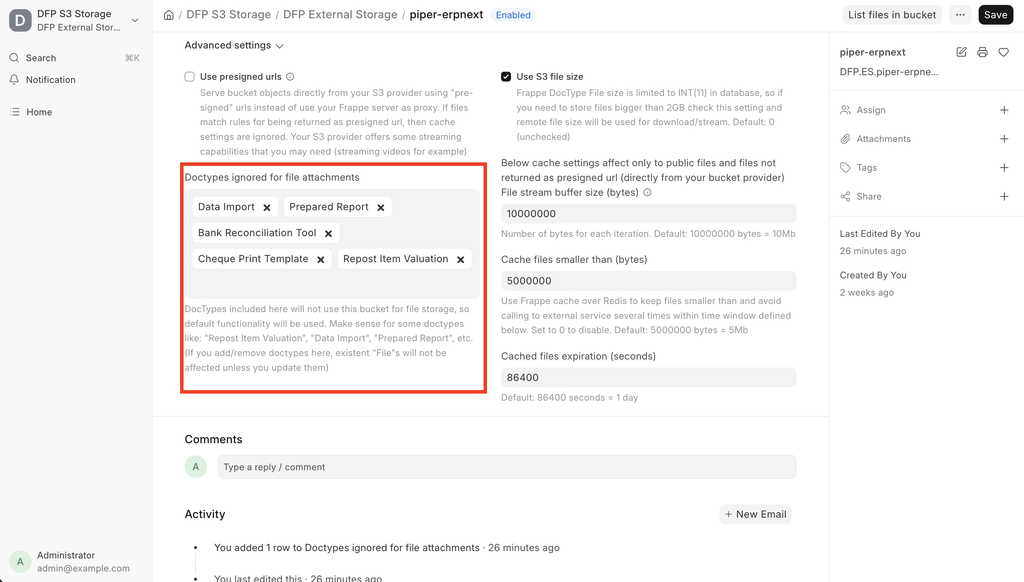
- Go to DFP S3 Storage settings
- Locate the Doctypes ignored for file storage list
- Add
Repost Item Valuationto the list
Other DocTypes that should always be excluded
The following DocTypes use files internally in the same pattern and must also remain excluded:
| DocType | Reason |
|---|---|
Repost Item Valuation |
Checkpoint .json.gz files read back mid-job |
Data Import |
Uploaded CSV/Excel consumed immediately by the import job |
Prepared Report |
Cached report output regenerated on demand; not a persistent document |
3. Why Some Reposts Are Skipped
Not every Repost Item Valuation runs to completion — some are intentionally marked Skipped. This is a performance optimisation built into ERPNext.
Item-Warehouse combination deduplication
ERPNext tracks which Item-Warehouse combinations have a pending or in-progress repost. If a newer repost already covers the same Item-Warehouse scope, an older repost in the queue is marked Skipped — because running it would be redundant work.
Example:
| # | Item | Warehouse | Posting Date | Status |
|---|---|---|---|---|
| 1 | DB1453N | Raw Materials | 01-May | Skipped |
| 2 | DB1453N | Raw Materials | 08-May | Completed |
Repost #1 is skipped because Repost #2 starts from an earlier or equal date and covers the same combination — it will recalculate everything #1 would have.
Why this matters
- Fewer reposts = less DB load. Each repost job re-reads and rewrites Stock Ledger Entries forward in time. Duplicate reposts on the same Item-Warehouse are expensive and unnecessary.
- A Skipped status is not an error — it means the system correctly determined the repost was covered by another job.
- You will see Skipped reposts in the list view; this is expected behaviour and does not require any action.
4. What Happens When Reposting Fails?
4.1 How reports are affected
When one or more Repost Item Valuation documents have Failed or are stuck In Progress, ERPNext surfaces a warning banner on key stock reports:
"Item valuation reposting in progress. Report might show incorrect item valuation."
This banner appears on:
- Stock Ledger report
- Stock Balance report
- Inventory Valuation report
The reports themselves are not broken — they display current data — but the valuation figures may be incorrect until the repost completes successfully. Do not rely on these reports for financial decisions while reposts are in a Failed state.
Additionally, in the Repost Item Valuation list view, failed documents will show:
- Status: Failed
- Error Log: The specific traceback (e.g., the S3 file path error)
- Current Index: How far the job progressed before failing (often
0if it failed at the first checkpoint)
4.2 Do not attempt to self-service a repost failure
Repost failures are a nuanced technical issue. The root cause is not always obvious from the error message (as seen with the S3 file path error, which reads as a permissions issue but is actually an S3 routing misconfiguration).
Attempting to manually fix reposts without understanding the root cause can:
- Re-trigger the same failure repeatedly
- Cause double-processing if checkpoint state is not cleared correctly
- Leave orphaned
Filerecords in an inconsistent state - In edge cases, produce incorrect valuation rates if reposts are re-run out of sequence
If you see Failed reposts, please contact UnifyXperts support.
Provide the following when reaching out:
- Screenshot of the Repost Item Valuation list filtered by Status = Failed
- The Error Log from one of the failed documents (open the document → scroll to Error Log field)
- Approximate date when the failures started appearing
- Any recent changes made to the system around that time (new apps installed, configuration changes, etc.)
📧 Raise a support ticket via UnifyXperts Helpdesk.
Document maintained by UnifyXperts. Last updated: May 2026.